Choose where your music comes from
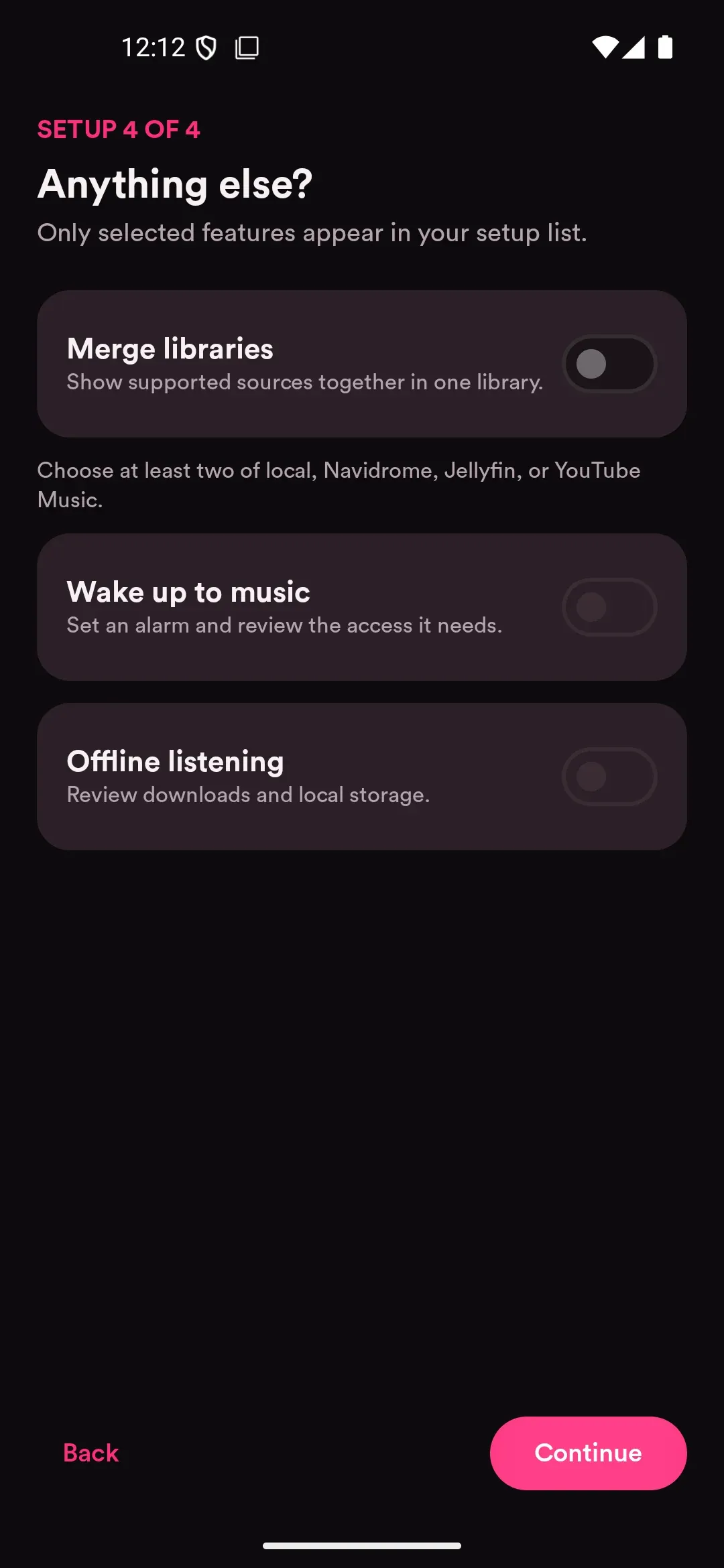
Use local files without an account, or connect Navidrome, Subsonic, OpenSubsonic, and Jellyfin. Save several accounts, switch between them, or merge sources into one library.
From fixing a track title to tuning each headphone channel. Explore the tools you’ll use every day, and the ones you’ll grow into.
Features reflect current development. Check the release notes for what’s in the latest download.
33 features across 6 categories.
Keep your local files and server libraries together.
Use local files without an account, or connect Navidrome, Subsonic, OpenSubsonic, and Jellyfin. Save several accounts, switch between them, or merge sources into one library.
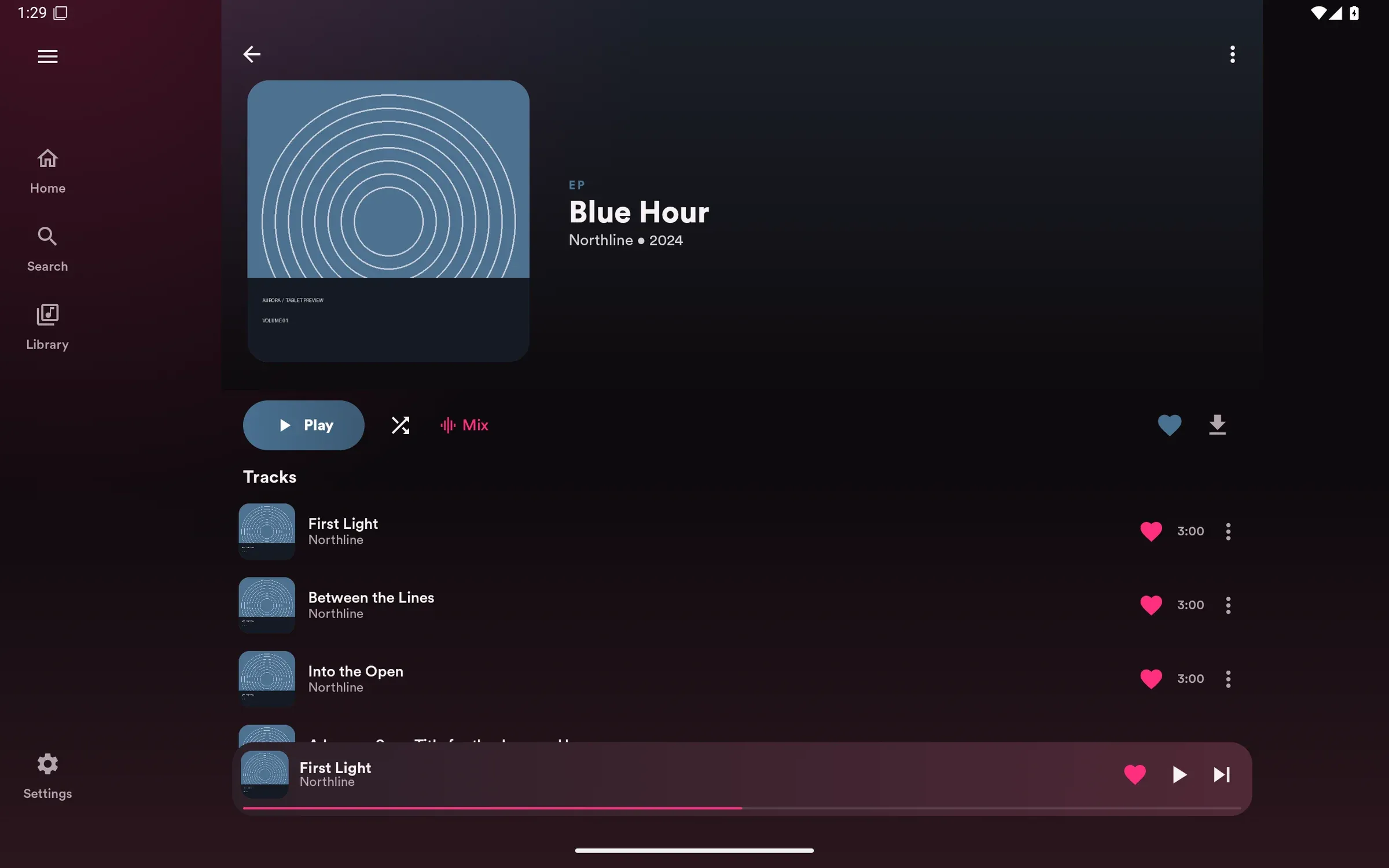
Browse albums, artists, songs, playlists, and folders. Create playlists, import or export M3U files, or set rules for playlists that update themselves. Download music for offline listening.
Fix the details that make a library easier to browse. Edit supported local files directly, or update server metadata where your account has permission.
Choose which characters or words separate artist names. Collaborations appear under each artist, while the complete credit stays on the track. These library rules leave the original file tags unchanged.
Find likely duplicates using similar artist names and track titles. Look up missing track information, or use audio identification with your own AcoustID key.
Analyze your tracks for Sonic radio and Auto DJ. Find related music by its sound, including tempo, energy and harmony, rather than relying only on artist names or genres.
Browse podcasts and internet radio, or add a radio stream yourself. Green Music App support reads your library and plays matching audio from YouTube. It requires your own app client ID.
Start with a device preset. Adjust everything from there.
Each rack equalizer supports up to 64 adjustable bands. Set frequency, boost or cut, and width for each band. Use separate corrections for the left and right channels, with a graph showing the combined result.
Use a 10-, 15- or 31-band graphic equalizer for quick adjustments. Start with an AutoEq headphone profile, or import supported Equalizer APO text, AutoEq PEQ JSON and Aurora EQ files.
Arrange up to 16 stages and 256 equalizer bands in total. Reorder, duplicate, bypass, or blend effects with the original sound. Split audio into separate paths and mix them together. Save groups of effects to reuse.
Automatic headroom lowers the input level when your effects boost the signal. Adjust the preamp yourself, use sample-peak limiting, and check levels before and after processing in Signal Path.
Import REW or Squig measurements and choose a target curve. Aurora generates corrections within your limits for boosts, cuts, and band count. Adjust bass and overall brightness, then compare the measured and predicted response. Left and right measurements can be fitted separately.
Adjust channel volume and timing, balance, stereo width, and crossfeed. Add equalizer bands that respond to loud passages, control dynamics across frequency ranges, or add saturation. Loudness compensation adjusts the tone as listening volume changes.
A de-esser softens sharp “s” sounds. A gate quiets audio below a chosen level, while an expander makes quiet passages quieter. Adjust how quickly each effect responds.
Choose tape or tube character, add bass harmonics, or brighten the sound. Use delay and reverb for echo and space, or chorus, flanger and phaser for movement.
Import impulse responses: files that describe a sound adjustment. Trim them, adjust their level, and use several in a chain. Save edited versions separately and export complete sound setups with their correction files included.
Start with headphone, earbud, or speaker presets. Assign your saved setups to outputs, tracks, or sources. Automatic rules can switch them for you; a manual override keeps your current choice.
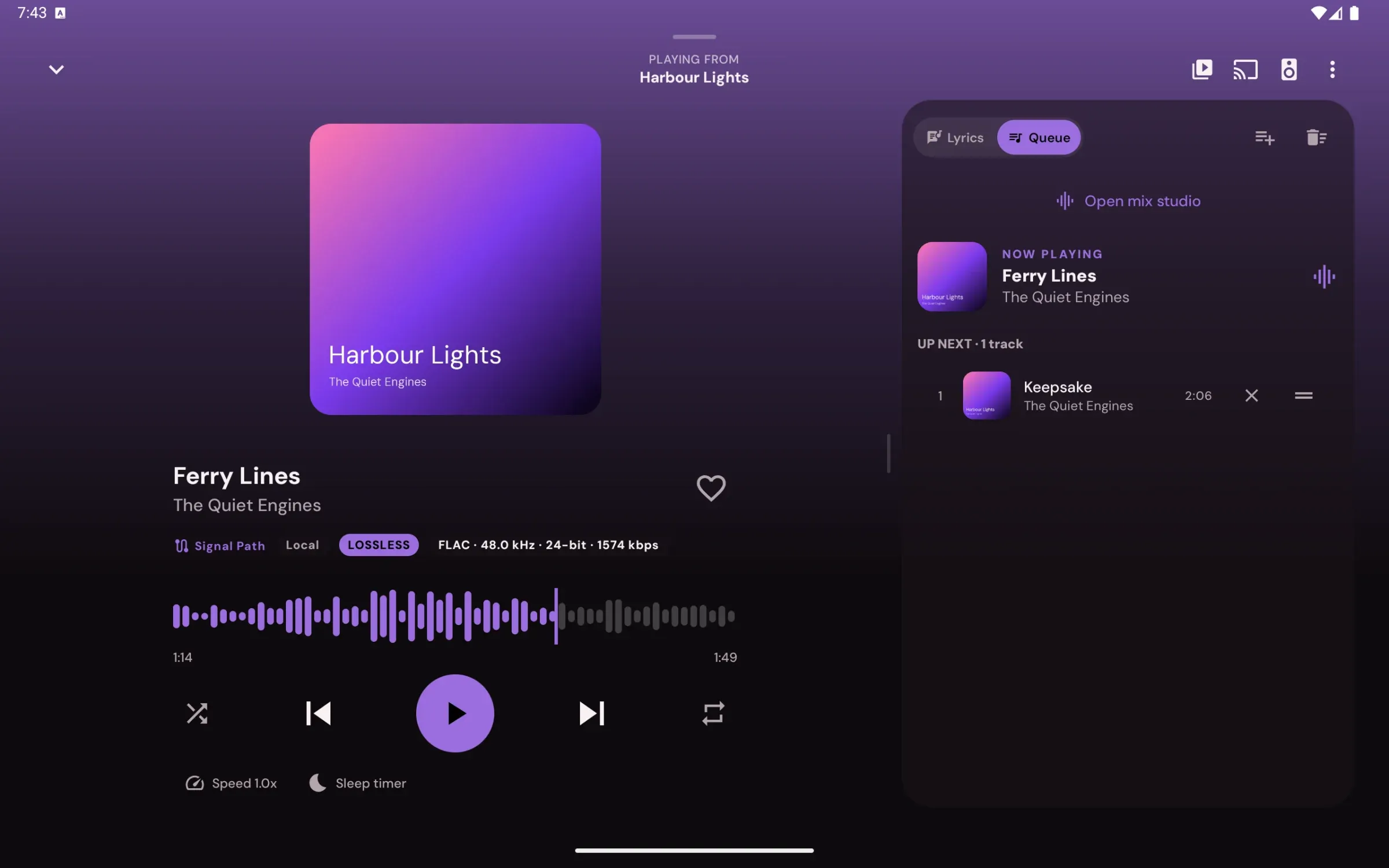
Compare two presets on the same short passage at matched volume. Run a blind ABX test to check what you can hear. Signal Path shows active effects, before-and-after levels, frequency graphs, and the output format.
Follow the track’s sample rate, choose a fixed rate, or set a compatible maximum. For processed integer output, choose Off, TPDF or noise-shaped dither. Noise shaping moves conversion noise toward higher frequencies; it does not add detail to the recording.
Enter headphone sensitivity and measured DAC and volume data to estimate sound level. Aurora shows the uncertainty and leaves uncalibrated outputs unavailable. Optional level history stays on your device.
Find the rack, measurements, correction files and comparisons in Settings → Advanced audio. The engine uses 64-bit calculations. Available processing depends on the output mode.
Keep listening, whether you want a whole album or a quick mix.
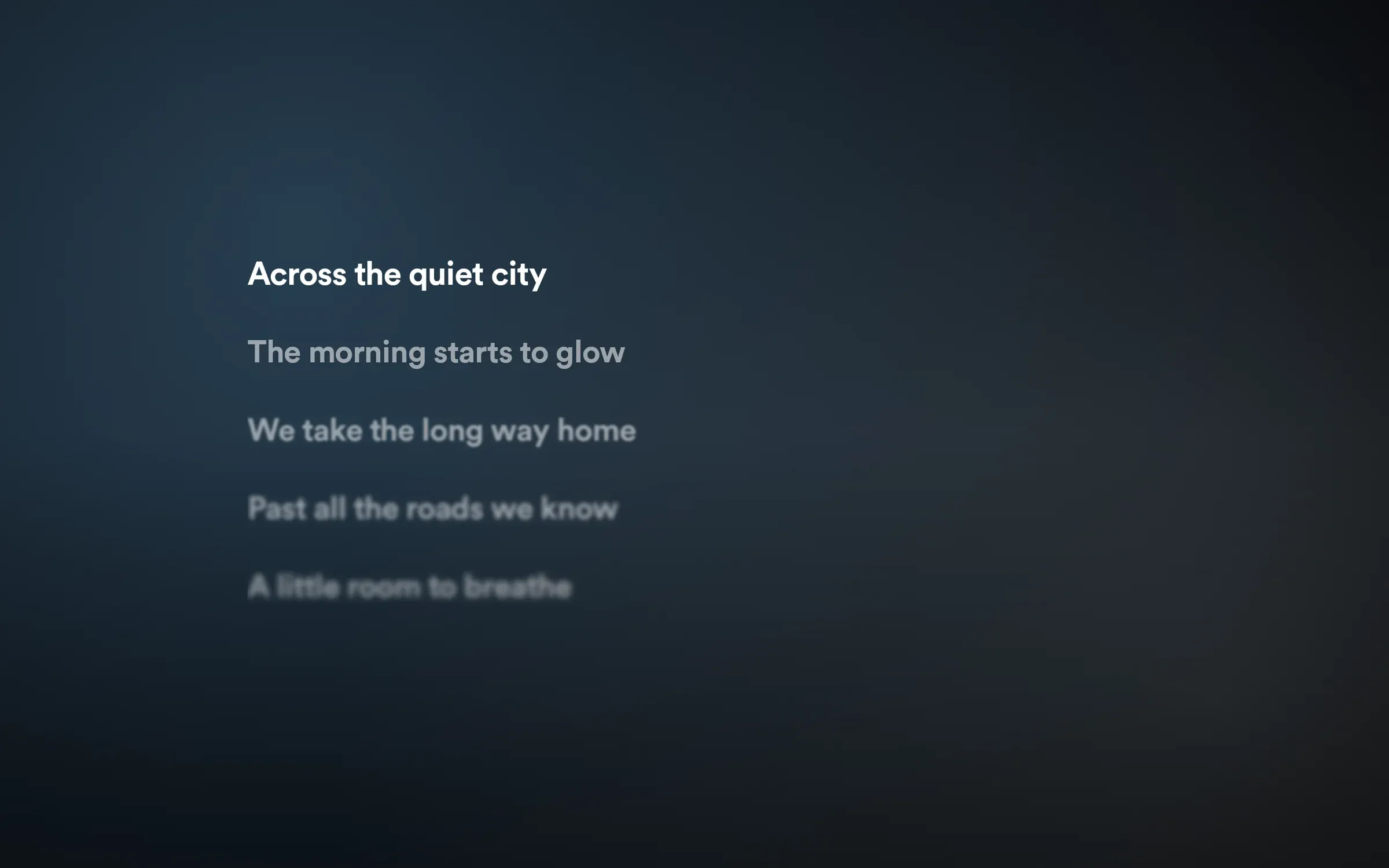
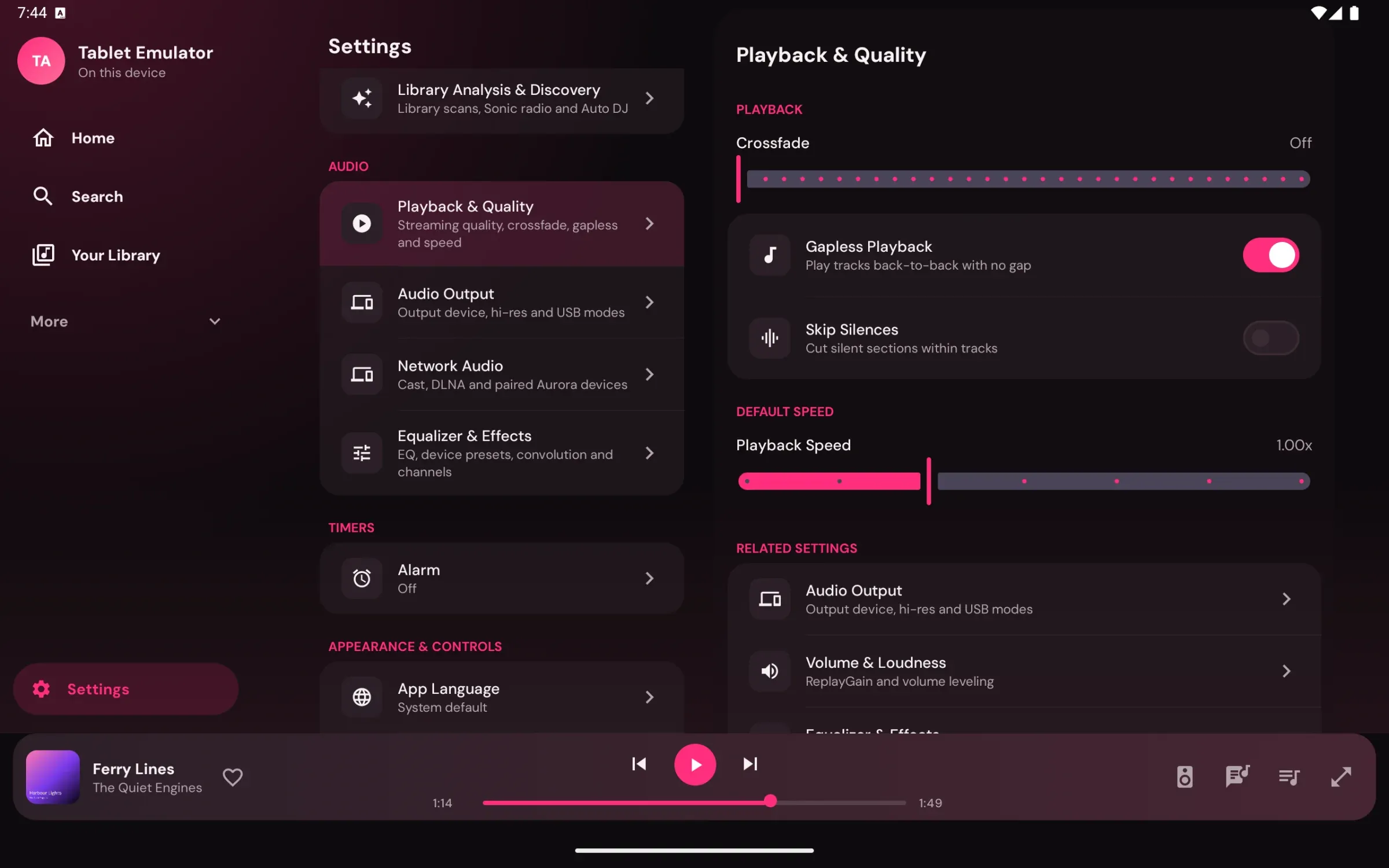
Gapless playback, crossfade, repeat, shuffle, and an editable queue saved per account. Read lyrics, change speed and pitch, skip silence, and level the volume between tracks.
Mix builds automatic transitions between tracks. Open Mix Studio to adjust them. Optional vocal and backing-track separation runs on your phone after a one-time model download.
Set a sleep timer or wake up to a music alarm. Use Android Auto, lock-screen controls, the home-screen widget, or a Quick Settings button to control playback.
Use ReplayGain and volume leveling to reduce jumps between tracks. Adjust speed and pitch for the way you listen, or skip silent passages on supported playback routes.
Listen on your phone, through a USB DAC, or on another player.
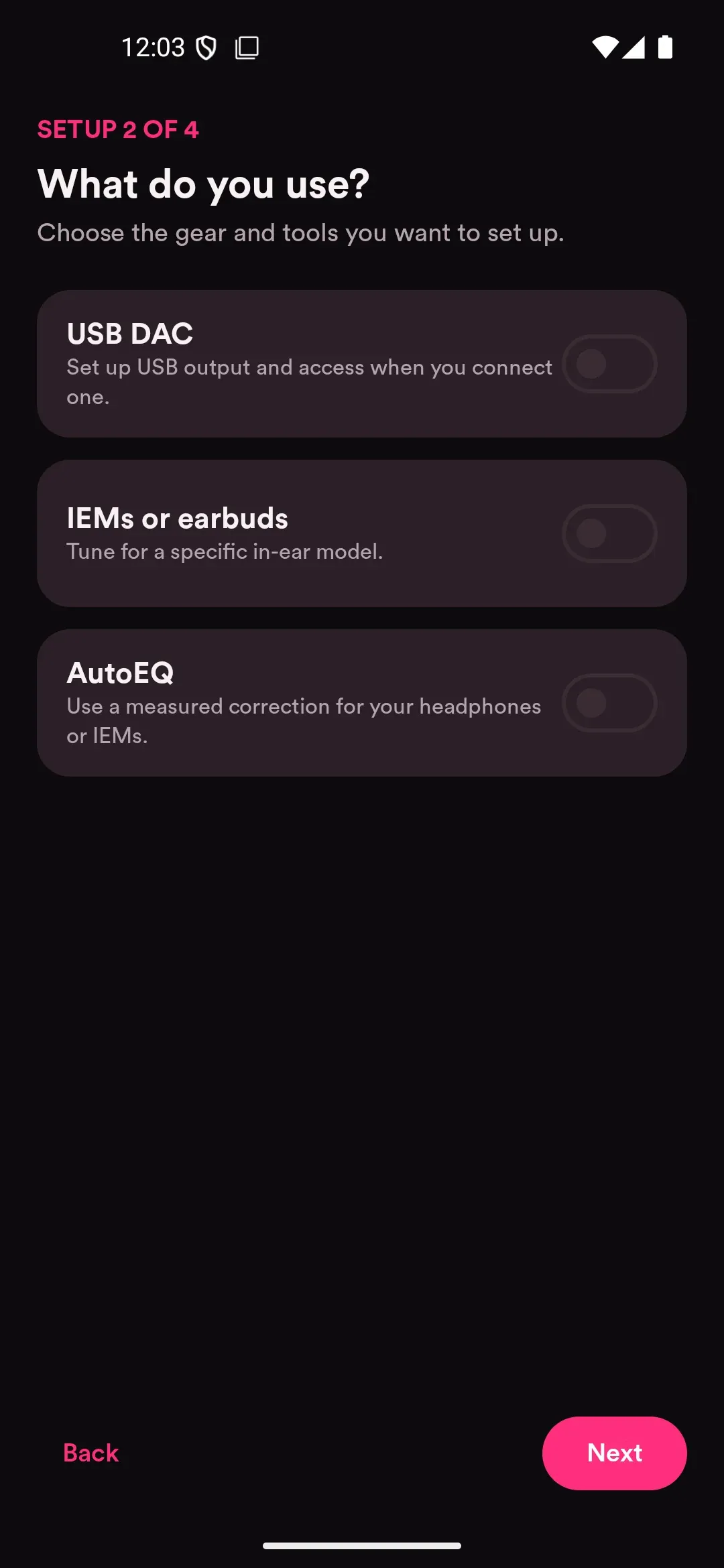
Connect a USB DAC, such as a headphone dongle. Direct mode bypasses Aurora’s effects and software volume. Processed mode keeps both active. Choose whether playback pauses or falls back to Android when USB is unavailable.
Play uncompressed DSD64, DSD128, DSD256 and DSD512 files through conversion to PCM. Track information and seeking are supported. Native DSD, DoP, DSD1024, DST-compressed DFF and SACD ISO playback are not available yet.
Send audio to Chromecast or a compatible DLNA receiver. Direct Cast sends the original file. Processed output applies your effects first. Tracks need preparation time; gapless transitions, crossfade, speed changes, and silence skipping are unavailable when sending audio.
Enable remote control on the receiving device, then pair with its address and code. Aurora copies up to 100 tracks and 512 MB before playback, so the receiver can continue if the controller goes offline. It uses its own sound settings and output. Revoke paired access whenever you want.
USB support is experimental and depends on your phone and DAC. Cast and DLNA compatibility also depends on the receiver.
Make the player feel like yours.
Switch between light, dark, and pure black modes. Choose different interface styles, set custom colors, and pick a visualizer. Retro, Aero, and Glass change the controls and surfaces as well as the palette.
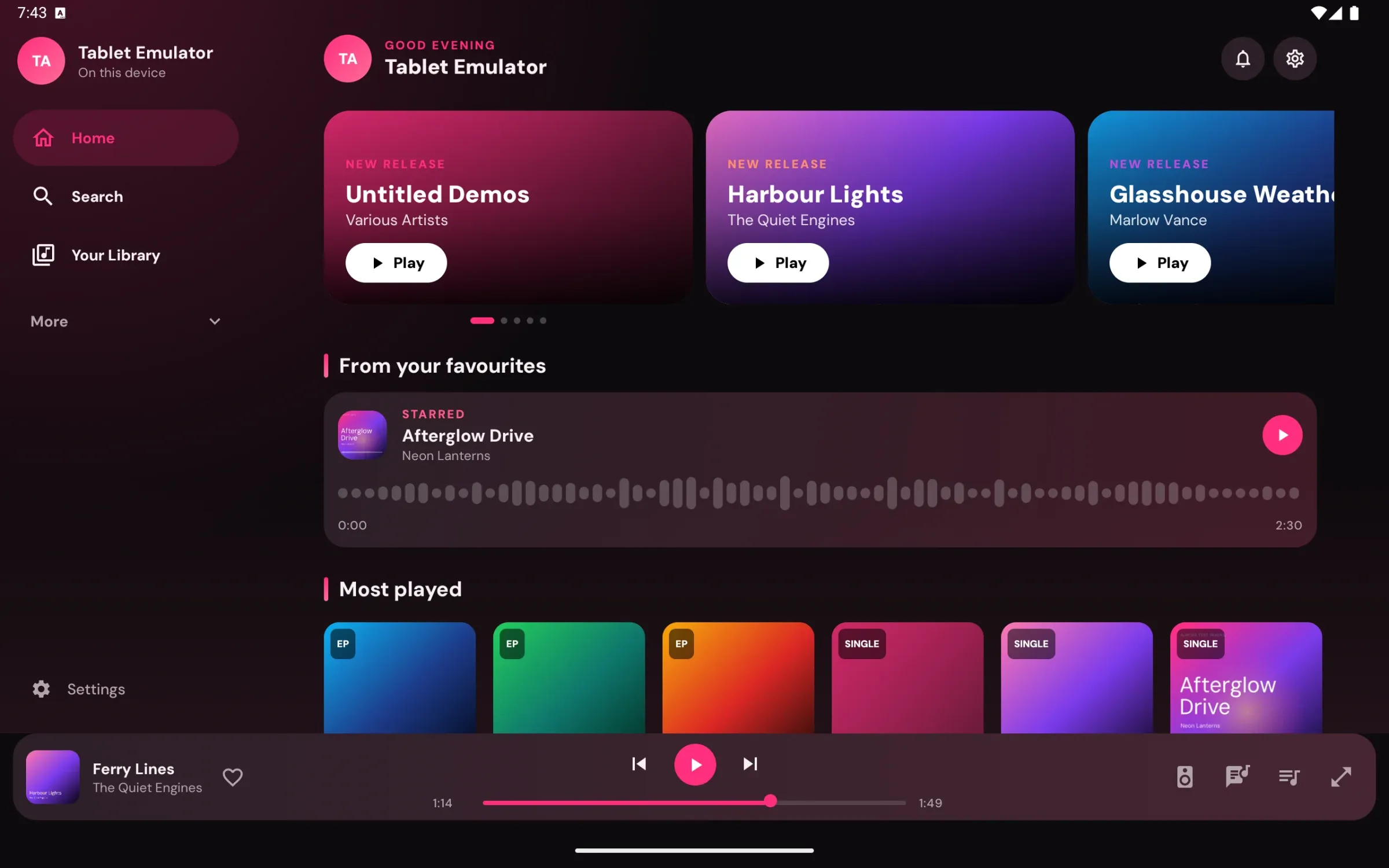
Set a display name, avatar, and banner for your local library. View your listening history and statistics for tracks, albums, and artists.
Connect the services you use and keep a copy of your setup.
Connect Last.fm or ListenBrainz to record your listens. Scrobbles use the first artist from your separator rules. Share your now-playing status on Discord, or add an AcoustID key to identify tracks from their audio.
Back up settings, local playlists, likes, history, your local profile, and saved sound setups in one file. Music files and downloads are not included.
Enable compatible extension apps for sound presets, read-only music libraries and tag suggestions. You choose when to load a preset, switch libraries or apply suggested changes.
These accounts are optional. Local files and music servers work without them.
Try a shorter search, or browse all categories.